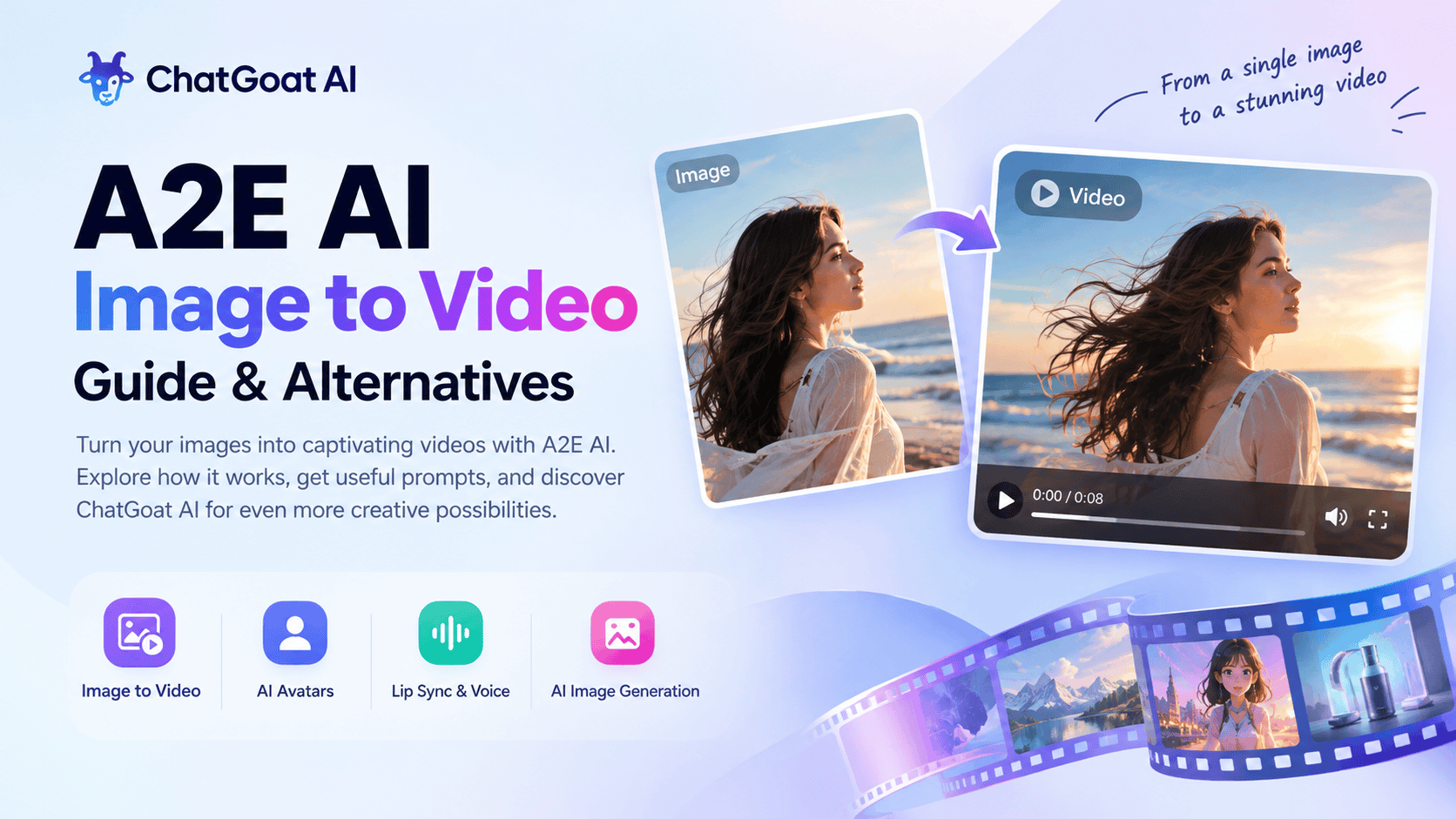
Have you ever wanted to turn a still photo into a moving video without learning complicated editing software? AI image-to-video tools make this possible by adding motion, camera movement, and visual effects to static images.
A2E AI is one platform worth exploring if you want to create AI videos, animate photos, or experiment with digital characters. Its tools include image-to-video generation, AI avatars, lip synchronization, voice cloning, and other creative features. You can explore the available tools on the official A2E AI website.
But how does A2E image to video work? What types of images produce better results? And what should you consider if you want to explore other AI image and video creation tools?
This guide answers these questions with practical instructions, ready-to-use prompts, and tips for choosing a tool that fits your creative needs.

What Is A2E AI?
A2E AI is an AI-powered creative platform that offers tools for generating and transforming visual and audio content. Its features cover several common tasks, including turning images into videos, creating talking photos, generating AI avatars, and working with voice and lip-sync effects.
One of its main use cases is A2E image to video, which allows users to start with a static image and describe the motion they want to see. Instead of manually animating every frame, users provide a visual reference and let an AI model generate a moving clip.
For example, you might start with a product photo and create a short promotional video. You could also animate an illustrated character, add subtle movement to a portrait, or bring a landscape image to life.
A2E can be useful for creators who want to experiment with these formats without building an entire video from scratch.
What Can You Create with A2E AI?
A2E's available features can vary by product version and subscription plan, but its official platform lists several creative capabilities.
- Image-to-video generation: Turn a still image into a moving clip by describing character actions, camera movements, or changes in the scene.
- AI avatars and talking photos: Create avatar-based videos or animate a portrait for presentation and communication purposes.
- Lip sync and voice tools: Explore workflows that combine spoken audio with synchronized mouth movements or AI-generated voices.
- AI image generation and editing: Create visual assets or modify existing images for different creative projects.
These tools serve different purposes. If you need a talking presenter, an avatar workflow may be more suitable than a general image-to-video generator. If you already have a finished illustration or product image, image-to-video generation may be the more direct option.
How to Use A2E AI Image to Video
The basic image-to-video workflow is straightforward: choose an image, describe the desired movement, generate a clip, and review the result.
The exact interface and available controls may differ depending on the model you select.
Step 1: Choose a Suitable Image
Start with a clear image that has a recognizable subject. You can use a portrait, product photo, landscape, cartoon character, or AI-generated illustration. The best choice depends on the video you want to create.
- For example, a product image with a clear outline works well for a slow rotation or a camera push-in. A portrait may be more suitable for subtle facial expressions or a small head movement.
- For more predictable results, avoid images that are extremely blurry, poorly lit, or filled with overlapping subjects.
Step 2: Upload the Image
Open the image-to-video tool on the A2E website and upload your selected image.
If the interface offers different models, durations, aspect ratios, or generation settings, review them before starting.
Think about the final use of the video. A vertical clip may suit short-form social content, while a horizontal clip may work better for a website or YouTube video.
Step 3: Write a Motion Prompt
A motion prompt tells the AI what should happen after the first frame.
Instead of writing only "make this image move," describe the subject's action, camera movement, and atmosphere.
For example:
"Animate the woman gently turning her head toward the camera. Her hair moves slightly in a soft breeze. Use natural facial movement, warm afternoon lighting, and a slow cinematic camera push-in. Keep the background consistent and the movement realistic."
This gives the model more direction than a short, vague instruction.
Step 4: Generate and Review the Video
Generate the clip and check whether the movement matches your intention.
Pay attention to the subject's appearance, background stability, unnatural motion, and changes to important details. If the result does not look right, simplify the prompt or describe the desired movement more precisely.
For example, if the subject's face changes too much, try requesting only a slight head turn rather than several complicated actions.
Step 5: Refine the Result
Good AI videos often require experimentation. Try adjusting one part of the prompt at a time rather than changing everything at once.
You might reduce the amount of movement, simplify the camera instructions, or choose a different starting image.
If the final clip is intended for advertising or commercial use, check the platform's current licensing terms and make sure you have the necessary rights to the source image, music, and other assets.
Best A2E Image-to-Video Prompts to Try
The following prompts are original examples that can help you explore different image-to-video use cases. They are starting points rather than guaranteed settings for any specific model.
1. Animate a Portrait
Prompt:
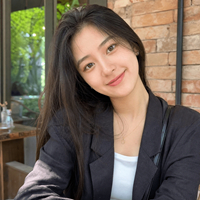
"Animate this portrait with subtle, natural movement. The subject gently turns their head, blinks, and smiles slightly. Add a soft breeze that moves a few strands of hair. Keep the facial features, clothing, lighting, and background consistent. Use smooth motion and a steady camera."
Best for: Profile images, character portraits, lifestyle content, and creative social posts.
The key is to request small, believable movements. Too many simultaneous actions can make a short clip look unnatural.
2. Turn a Product Photo into a Promotional Video
Prompt:
"Create a polished product showcase from this image. The camera slowly moves closer to the product while soft studio lighting highlights its shape and surface details. Add subtle reflections and a clean background. Keep the product design, colors, proportions, and branding unchanged. Use smooth, professional camera movement."
Best for: Product pages, advertising concepts, online stores, and social media marketing.
For product videos, preserving the product's appearance is often more important than adding dramatic movement. Review any text, logos, or small design details carefully.
3. Animate a Landscape
Prompt:
"Bring this landscape to life with gentle environmental movement. Clouds drift slowly across the sky, leaves move in a light breeze, and sunlight shifts naturally across the scene. Use a gradual cinematic camera movement while preserving the original composition, colors, and overall atmosphere."
Best for: Travel content, digital backgrounds, storytelling, and atmospheric video clips.
A restrained prompt often works well when the original image already contains a strong composition.
4. Create an Animated Character Scene
Prompt:
"Animate this illustrated character standing in a colorful fantasy environment. The character takes a small step forward and looks toward the horizon while the clothing and surrounding plants move gently in the breeze. Preserve the original character design, color palette, and illustration style. Use smooth movement and a slow camera push-in."
Best for: Anime-inspired content, original characters, story concepts, and animated social posts.
If character consistency is important, use a clear reference image and avoid requesting too many pose changes in one short generation.
How to Write Better AI Image-to-Video Prompts
A useful prompt usually contains four elements:
- Subject: What should remain visible in the video?
- Action: What should the subject do?
- Camera: Should the camera zoom, pan, track, or remain still?
- Visual consistency: Which features, colors, and background details should remain unchanged?
For example, "a product rotates slowly" defines the action. Adding "with a steady camera and unchanged product proportions" provides more specific guidance.
You can also use negative prompts if the selected model supports them. Terms such as "distorted features," "unstable background," or "unnatural movement" may help communicate what you want to avoid, although results depend on the model.
A2E AI Review: Benefits and Limitations
A2E AI can be useful for people who want to experiment with AI-generated videos and related creative tools. However, the right choice depends on your project, budget, and expectations.
Potential Benefits
A relatively simple workflow: Image-to-video generation lets you start with an existing image instead of building an entire video scene manually.
Different creative applications: Portrait animation, product showcases, landscapes, and illustrated characters provide several ways to use the technology.
Additional AI features: Avatar, voice, and lip-sync tools can be useful when your project requires more than visual animation.
Prompt-based control: Text instructions provide a practical way to describe the movement and atmosphere you want, even if you have limited video-editing experience.
Limitations to Consider
Motion is not always predictable. An AI model may interpret a prompt differently from what you intended. Complex movements can introduce visual distortions.
Image quality affects the result. Blurry subjects, unclear edges, and complicated backgrounds can make animation more difficult.
Generation limits can matter. Credits, supported resolutions, video duration, watermarks, and processing priority may depend on the model or plan.
One tool may not fit every workflow. You may prefer one platform for talking avatars and another for creating product visuals, stylized images, or cinematic video clips.
These are general considerations for AI video creation, not claims that every limitation applies to every A2E model. Before committing to a paid plan, review the current feature list, pricing, and usage conditions on the official website.
A2E AI Alternatives: Other Ways to Create Images and Videos
A2E is one option for AI-powered creative work, but it may not be the only platform worth considering.
Some creators want more control over the starting image. Others want to compare different video models, generate images in multiple styles, or move from an initial concept to a finished visual asset with fewer tool changes.
When evaluating an A2E AI alternative, start with the task you want to complete rather than assuming one platform will be best for every project.
ChatGoat AI for Image and Video Creation
ChatGoat AI is another option to explore if your workflow involves both AI image creation and video generation.
Rather than focusing only on one type of output, you can explore the image and video tools available on the platform and choose an appropriate workflow for your project.
For example, imagine that you want to create a short social media advertisement for a new product.
You could begin by generating a product concept image, experimenting with its visual style, and then using an available video generation tool to create a moving scene. This approach gives you a way to develop the visual concept before working on the video.
You could also use an image-first workflow for character content. Create a character illustration, refine the appearance, and then explore an available image-to-video model to add movement.
The exact workflow depends on the tools and models currently available on ChatGoat AI. Check the relevant tool page before starting to confirm its supported inputs, output formats, and generation settings.

How to Choose Between A2E AI and Other Tools
There is no single best AI video generator for every situation. Use the following criteria when comparing platforms.
| What to compare | Questions to ask |
|---|---|
| Image-to-video support | Can you animate your existing images? |
| Image creation | Can you generate or refine images before animating them? |
| Motion control | Can you describe subject movement and camera direction? |
| Model selection | Are different models available for different creative styles? |
| Output settings | Does the tool support your preferred duration, resolution, and aspect ratio? |
| Pricing | How many credits does each generation require? |
| Commercial use | What permissions and restrictions apply to the final output? |
If your main goal is creating talking avatars, focus on avatar and lip-sync capabilities. If you want to produce product videos, prioritize visual consistency and camera movement. If you want to explore several creative approaches, a platform offering multiple image and video tools may be worth testing.
The most reliable way to compare results is to use similar source images and prompts, record the settings, and evaluate the outputs against your actual needs.
From AI Image Creation to Video Production with ChatGoat AI
Image-to-video tools are most useful when they fit into a broader creative process.
You do not always need to start with a photograph. You can also develop a new visual concept with an AI image generator and then explore ways to animate the result.
Here is a simple workflow to try.

Step 1: Create the Starting Image
Begin with a clear idea of the subject, visual style, composition, and intended audience.
For a product advertisement, you might want a clean product shot with controlled lighting. For a character video, you may want a full-body illustration with a simple background.
You can explore the available image creation tools on ChatGoat AI to develop a starting visual.
Step 2: Prepare the Image for Animation
Review the image before using it as a video reference.
Make sure the main subject is clear and that important details are easy to recognize. If you expect the subject to move, consider whether the pose and composition leave enough visual space for that movement.
A simple, well-composed image can be easier to animate than one with many overlapping objects.
Step 3: Choose a Suitable Video Workflow
Open the relevant video generation tool and check whether it supports image-to-video input.
Write a prompt that focuses on one or two clear actions. If the scene is complex, you may get more useful results by creating several short clips rather than trying to animate everything in one generation.
Step 4: Review and Adapt the Output
Check the result for visual consistency, movement, and suitability for your target platform.
For social media, you may need a vertical composition. For a website banner or presentation, a horizontal format may be more suitable.
Once the clip meets your requirements, you can move on to the editing and publishing steps supported by your workflow.
This image-first approach can be useful for creators, marketers, small businesses, and anyone who wants to explore AI-assisted visual storytelling without starting every project with a video shoot.
A2E AI FAQ
1. What is A2E AI?
A2E AI is an AI-powered creative platform offering tools for image-to-video generation, AI avatars, lip sync, voice cloning, and other visual or audio tasks. Its available tools and features may change over time.
2. What is A2E image to video?
A2E image to video is a feature that uses a still image and a text prompt to generate a moving video clip. Users can describe the desired subject action, camera movement, and atmosphere to guide the generation process.
3. Is A2E AI free to use?
A2E has offered free access or free credits through its online products, but the available features and usage limits can differ by platform version and plan. Check the current A2E pricing page for the latest details before generating large numbers of videos.
4. How do I turn a photo into a video with A2E AI?
Open the image-to-video tool, upload a suitable image, enter a motion prompt, select the available generation settings, and start the process. Review the resulting clip and adjust the prompt if the movement does not match your intention.
5. What types of images work best for A2E image to video?
Clear portraits, product photographs, landscapes, and illustrations are useful starting points. High-resolution images with a recognizable subject and uncluttered composition can make it easier to guide the desired movement.
6. Can A2E AI animate AI-generated images?
Image-to-video workflows can often animate AI-generated images if the selected model supports the input format. You can generate an image first, then use it as a reference for video creation. Results depend on the image, prompt, and model.
7. What is the difference between A2E AI and an AI image generator?
An AI image generator primarily creates or edits still images. An image-to-video generator uses an image as a starting point to create motion over time. Some platforms offer both types of tools, while others focus on one task.
8. Is ChatGoat AI an A2E AI alternative?
ChatGoat AI is another platform to explore for AI image and video creation. Whether it is a suitable alternative depends on the particular tools you need, the available models, output quality, usage limits, and pricing. Check the current platform features before choosing.
9. What does a2e.ia mean?
If you encountered the spelling "a2e.ia" while searching for A2E AI, verify the intended website address before entering account details or uploading files. The official website referenced in this guide is a2e.ai. Similar-looking domains should not automatically be assumed to belong to the same service.
10. Can I use AI-generated videos for commercial projects?
Commercial usage rights depend on the platform's terms, the model used, and the rights associated with the source material. Before using a generated video in an advertisement or for a client, review the relevant licensing terms and make sure you have permission to use any uploaded images, voices, logos, or other protected content.
Final Words
A2E AI is worth exploring if you want to turn static images into moving videos or experiment with AI avatars and related creative tools. Its image-to-video workflow offers a practical starting point for creating portraits, product showcases, landscapes, and animated character scenes.
The quality of the final result depends on more than the platform itself. Choosing a suitable starting image, writing a clear motion prompt, and refining the output are all important parts of the process.
If you want to explore a broader image-to-video workflow, ChatGoat AI is another option to consider. You can start with image creation, explore available video generation tools, and choose a workflow that fits your creative goals.

