
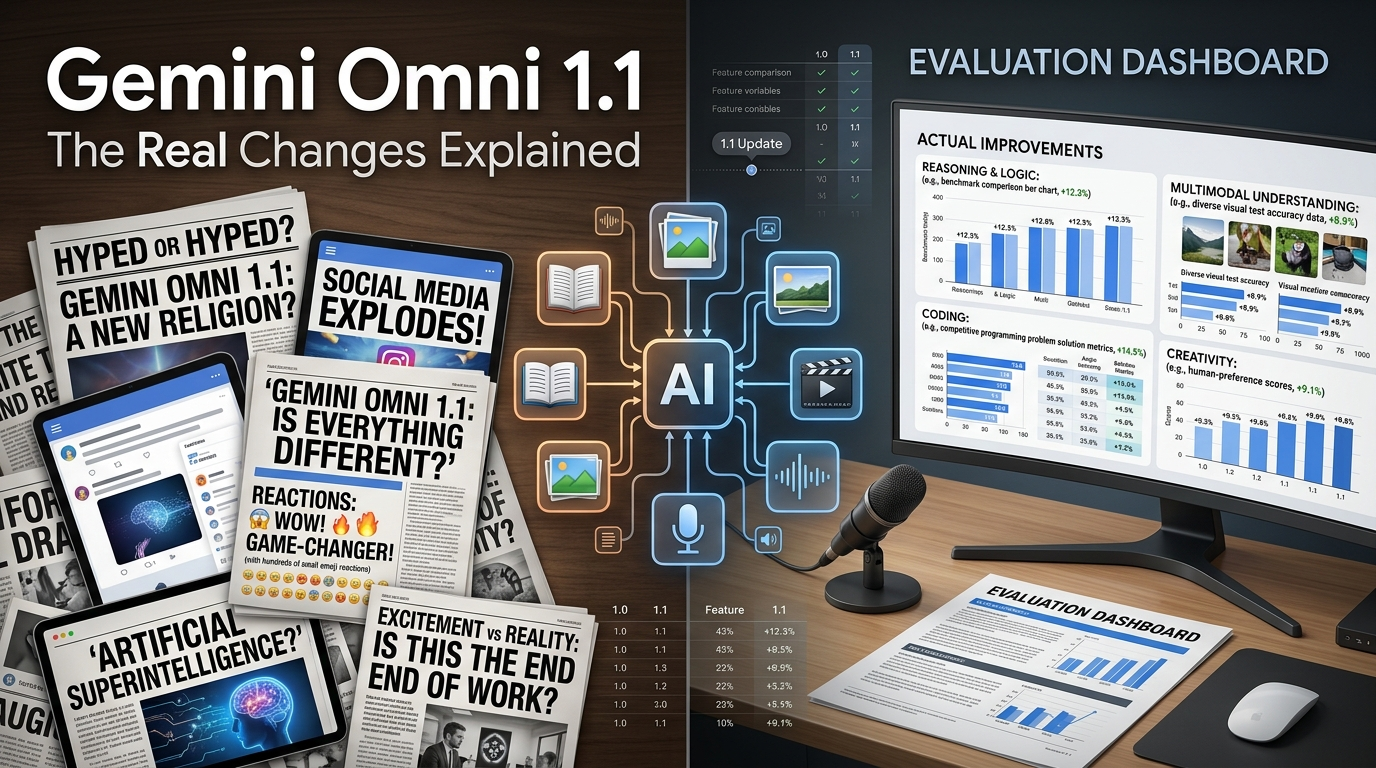
Gemini Omni 1.1 Flash is Google's latest multimodal AI video model designed for creating and editing videos with text, images, and video inputs. Compared with previous AI video tools, it focuses on better scene consistency, conversational editing, and cinematic control. In this guide, we explore its features, real use cases, prompts, limitations, and how you can try Gemini Omni 1.1 through ChatGoat AI.

What Changed From Omni 1.0 to Omni 1.1
The original Gemini Omni Flash, announced at Google I/O in May 2026, introduced the core idea: one model that takes text, image, audio, or video as input and generates synchronized video output in a single pass. Version 1.1 doesn't replace that foundation - it adds control layers developers had been asking for since launch.
| Capability | Gemini Omni 1.0 | Gemini Omni 1.1 |
|---|---|---|
| Scene extension | Analyzed only the last second of footage | Analyzes up to 10 seconds of prior footage for more consistent continuations |
| Max continuous duration | ~10 seconds per generation | Up to 40 seconds cumulative, added in 10-second increments |
| Frame control | Not available | Set first and last frame to generate the motion between them |
| Reference input | Text/image/audio | Adds up to 3 seconds of external video as a style/motion reference |
| Draft mode | Standard generation only | 360p draft mode, ~60% faster and roughly a third of the cost of 720p |
| Max resolution | 1080P | Up to 4K (via upscaling, not native generation) |
The Numbers Everyone Is Getting Wrong
A lot of the coverage published in the first 24 hours implies Gemini Omni 1.1 can generate a single continuous 40-second 4K clip. It can't, and it's worth being precise here because this directly affects how you plan a production workflow:
- Each individual generation is 3-10 seconds at 24FPS, not 40. The 40-second figure is a cumulative total reached by repeatedly extending a clip in 10-second steps, with the model re-analyzing the tail end of the previous segment each time.
- 4K is upscaled, not natively generated. The model generates at lower resolution and applies Google's upscaling to reach 1080p or 4K. The API documentation states this explicitly. If you need native high-resolution detail (fine text, intricate textures), expect the same limitations any upscaling pipeline has.
- First/last frame interpolation is genuinely new and useful for camera sweeps, zoom transitions, and looping clips - but it works on a single 3-10 second segment, not a full extended sequence.
None of this makes Omni 1.1 less useful - it's still a meaningful jump in control, which was the actual bottleneck for production teams. It just means "40 seconds of 4K video" is a workflow outcome, not a single generation.
Pricing
Gemini Omni 1.1 Flash is billed per second of output, and price scales with resolution:
| Resolution | Price per second |
|---|---|
| 360P (draft) | $0.03 |
| 720P | $0.10 |
| 1080P | $0.15 |
| 4K (upscaled) | $0.30 |
The 360p draft mode exists specifically so teams can iterate on prompts and framing cheaply before committing to a full-resolution render - a 10-second 4K clip costs $3.00, versus $0.30 for the same clip at 360P.
Gemini Omni 1.1 vs. Seedance 2.5 and MiniMax H3
The two models drawing the most direct comparisons to Omni 1.1 right now aren't Google's usual rivals - they're ByteDance's Seedance 2.5 and MiniMax's open-weight H3, both released within the same few weeks and both aggressively priced.
| Model | Strength | Max output | Editing control | Availability |
|---|---|---|---|---|
| Gemini Omni 1.1 Flash | Conversational, session-based editing; unified text/image/audio/video input in one pass | 3-10s per generation, extendable to 40s cumulative via 10s increments | First/last frame, scene extension, style reference video | Closed, API/AI Studio only |
| Seedance 2.5 | Long-form storytelling and heavy reference-driven generation - up to 50 image, video, and audio reference assets in one request | Up to 30 seconds in a single pass (per ByteDance's spec) | First-frame and first-and-last-frame control, timestamp-level multi-round editing | Closed, rolling out via BytePlus/Jimeng/Doubao |
| MiniMax H3 | Aggressive price-performance, native 2K resolution with synchronized stereo audio generated in the same pass | Up to 15 seconds native | First/last frame control, video-to-video motion transfer | Open weights (community license) + hosted API |
A few things worth calling out before you pick one:
- Native duration is where Seedance 2.5 pulls ahead on paper. ByteDance's own spec claims up to 30 seconds in a single generation pass, versus Omni 1.1's 10-second segments stitched to a 40-second cumulative total. Whether that native 30-second claim holds up consistently across providers is still being tested by early adopters - treat it as a spec sheet number until you've run it yourself.
- MiniMax H3 is the only one of the three with open weights, released under MiniMax's own community license (not a standard permissive license like MIT or Apache 2.0). That matters if local deployment or fine-tuning is part of your roadmap - neither Omni 1.1 nor Seedance 2.5 offers that path.
- Pricing across all three varies significantly by provider. Direct API rates and third-party gateways (fal, Replicate, BytePlus, Atlas Cloud, etc.) quote meaningfully different per-second prices for the same model, sometimes by 2-3x. Don't trust a single cited number for Seedance 2.5 or H3 without checking the specific provider you'll actually be billed through - Omni 1.1's pricing is more consistent since Google is the only provider.
- Omni 1.1's real differentiator is still the conversational, in-session editing loop - swap a subject, shift lighting, fix a hand, without resetting generation state. Seedance 2.5 offers timestamp-level editing with a similar goal; H3 leans more on video-to-video motion transfer than iterative prompt refinement.
If you're already comparing Seedance 2.5 against MiniMax H3 for a production pipeline, Omni 1.1 is worth adding to that shortlist specifically for projects that need tight first/last-frame camera control rather than maximum native clip length or lowest cost per second.
How to Access Gemini Omni 1.1
Gemini Omni 1.1 Flash is a developer-facing model. There's no dedicated consumer app for it yet - access currently runs through:
- Google AI Studio - the fastest way to test it without writing code. You get a prompt box, frame controls, and draft/upscale options.
- Gemini API (
gemini-omni-1.1-flash) - for building it into your own product or pipeline.gemini-omni-flash-previewis the older preview version; 1.1 is the stable release. - Gemini Enterprise Agent Platform - for teams already on Google Cloud who want it wired into existing agent workflows.
All of these require a Google Cloud project, billing enabled, and at least basic familiarity with API keys or Agent Studio. If you just want to explore what Gemini's underlying models can do - reasoning, image understanding, multimodal chat - without setting up a developer account first, that's a lower-friction starting point before committing to the video API.
This is where a tool like ChatGOAT AI fits into the workflow. ChatGOAT gives you free, browser-based access to Gemini models (including Gemini 3.7 Flash) alongside GPT 5.6 Sol, Grok 4.6, and DeepSeek, plus a built-in AI Image Generator - no account setup, no billing configuration, no API keys. If you're planning a Gemini Omni 1.1 video project, you can use ChatGOAT's image generator to rough out your first and last frame references before ever touching the API - since Omni 1.1's frame-interpolation feature needs exactly that kind of input. It won't generate the video itself, but it removes the friction of getting your reference material ready.
Gemini Omni 1.1 AI Video Generator: How to Create Cinematic Videos with Prompts
Getting a technically correct video out of Omni 1.1 is easy. Getting one that actually reads as cinematic - with intentional camera movement, consistent lighting, and a shot that feels directed rather than generated - depends almost entirely on how you structure the prompt.
The Prompt Structure That Works
Treat every prompt like a shot description, not a general request. A cinematic prompt for Omni 1.1 should stack these elements in order:
- Subject and action - who or what is in frame, and what they're doing
- Camera movement - how the camera behaves (static, dolly in, pan, crane, handheld)
- Shot type and framing - wide, medium, close-up, over-the-shoulder
- Lighting and mood - golden hour, harsh studio light, overcast, neon
- Style reference - a film stock, director's visual language, or genre ("shot on 35mm," "muted color grade," "shallow depth of field")
A prompt that only describes the subject ("a woman walking through a city at night") gives the model too much freedom and usually produces generic motion. Adding camera and lighting direction is what pushes the output toward something usable.
Example - weak prompt:
"A car driving on a mountain road."
Example - cinematic prompt:
"A vintage convertible driving along a winding coastal mountain road at golden hour. Camera mounted low on a drone, tracking alongside the car at speed, slight motion blur on the wheels. Warm, low-angle sunlight, long shadows, shallow depth of field with the road blurring softly in the foreground."
The second version gives Omni 1.1 concrete camera behavior and lighting logic to follow, which is where the model's improvements in physics and motion consistency actually show up.
Using First and Last Frame Control for Cinematic Motion
This is Omni 1.1's most useful tool for directing camera movement specifically. Instead of describing a camera move in words alone, you can:
- Generate or upload a first frame - the opening composition of the shot.
- Generate or upload a last frame - where the camera and subject should end up.
- Prompt the motion between them - "slow dolly-in with a rack focus shifting from background to subject".
This turns an ambiguous instruction ("zoom in dramatically") into a defined start and end state the model interpolates between, which produces far more consistent, professional-looking camera moves than prompting motion from scratch. It's especially effective for reveal shots, product hero shots, and transitions between two settings.
Draft-First Workflow for Cinematic Prompts
Because prompt phrasing has such a large effect on output, don't generate your first attempt at full resolution:
- Write 2-3 prompt variations, changing only the camera movement or lighting description each time
- Generate all three in 360P draft mode ($0.03/second) to compare framing and motion quality cheaply
- Pick the version with the strongest composition and refine the prompt wording based on what actually rendered
- Upscale only the final chosen take to 1080P or 4K
This is the same iteration loop professional prompt engineers use across video models generally, but it matters more here because 4K generation costs 10x the price of a 360P draft.
Common Cinematic Prompt Terms Worth Using
- Camera moves: dolly in/out, pan left/right, tilt up/down, crane shot, handheld, static lockdown, tracking shot
- Shot framing: wide establishing shot, medium shot, close-up, extreme close-up, over-the-shoulder
- Lighting: golden hour, blue hour, high-contrast/hard light, soft diffused light, practical lighting, backlit silhouette
- Lens/style cues: shallow depth of field, anamorphic flare, film grain, desaturated color grade, 35mm look
If you want to test cinematic prompt phrasing before committing to Omni 1.1's per-second billing, you can rough out the visual language - lighting, framing, color palette - as still images first using ChatGOAT AI's image generator, then carry the same descriptive terms into your Omni 1.1 prompt. Nailing the look in a still image is a lot cheaper than iterating on it across paid video generations.
Practical Use Cases
- Product demo videos: Use a first-frame product shot and a last-frame "in use" shot, let Omni 1.1 generate the motion between them.
- Social content drafts: Iterate cheaply in 360p, vary one prompt element at a time, then upscale only the version you're keeping.
- Storyboarding: Sketch key frames as still images first (an AI image generator works well here), then feed them into Omni 1.1 as start/end references.
- Scene continuation: Extend an existing clip's narrative without regenerating from scratch - useful for episodic or serialized content.
Limitations to Know Before You Build
- Not a single-shot long-form generator - plan for segmented extension if you need more than 10 seconds.
- 4K output is upscaled; don't rely on it for content requiring native high-resolution fidelity.
- Requires a Google Cloud/developer setup - there's currently no no-code consumer video app for this specific model.
- Pricing scales quickly at higher resolutions for longer cumulative clips, so draft-mode iteration is worth building into your process from the start.
FAQ
Is Gemini Omni 1.1 free to use?
No. It's billed per second of generated video, from $0.03/second at 360p up to $0.30/second at 4K. Google AI Studio may offer limited free-tier credits depending on your account.
Can Gemini Omni 1.1 generate a full 40-second video in one request?
No. Each generation produces 3 - 10 seconds. The 40-second figure refers to the cumulative length achievable by extending a clip in 10-second increments.
Is the 4K output native or upscaled?
Upscaled. Google's own documentation labels 1080p and 4K outputs as upscaled from lower-resolution generations.
What's the difference between Gemini Omni 1.1 and Gemini Omni Flash Preview?
gemini-omni-1.1-flash is the stable, production-ready release. gemini-omni-flash-preview is the earlier preview version being phased out in favor of 1.1.
Do I need to code to use it?
Not necessarily - Google AI Studio provides a visual interface. But full integration into a product requires the Gemini API.
How is it different from just using Gemini's chat model?
Gemini's standard chat models handle text, image, and reasoning tasks. Omni 1.1 is specifically the video generation and editing model within the Gemini family - for general multimodal conversation, image generation, and everyday AI assistance, a tool like ChatGOAT AI (built on Gemini and other leading models) is the simpler entry point.

