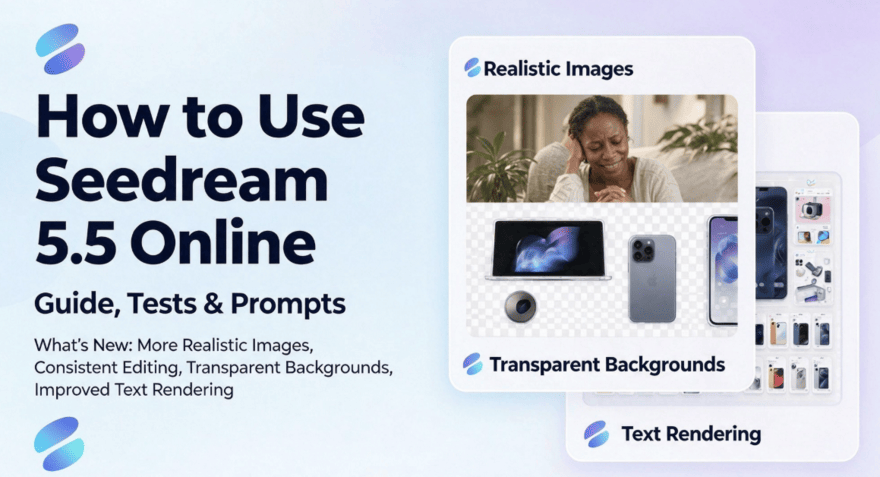
Seedream 5.5 offers more realistic image generation, more consistent editing, transparent background support, and improved text rendering. These features can help creators, marketers, and online sellers produce polished visuals with less manual cleanup.
In this guide, you’ll explore what’s new, learn how to use Seedream 5.5 online with ChatGOAT AI, and find prompt ideas for creating and editing images.
What Is Seedream 5.5?
Seedream 5.5 is an AI image generator for creating images from text prompts and editing existing ones. You can use it to make product photos, portraits, posters, social media graphics, and illustrations.
It’s designed to produce polished results and make targeted edits while keeping the rest of an image consistent. If you need one tool for a range of visual projects, Seedream 5.5 is worth trying.
What’s New in Seedream 5.5?
More Realistic Images
Seedream 5.5 creates more natural - looking portraits and more detailed textures for materials like fabric, glass, and metal. This can be useful for product shots, lifestyle images, and interior mockups.
More Consistent Image Editing
When you request a specific change, Seedream 5.5 is better at keeping the rest of the image intact. For example, you can change a sofa’s color or update a product label while preserving the original composition and lighting.
Transparent Background Generation
Seedream 5.5 can generate isolated objects with transparent backgrounds, which is useful for product cutouts, stickers, and app or game assets.
Improved Text Rendering
Short text, such as a poster headline or product label, is more likely to appear clearly. For the best results, keep the wording brief and check the spelling in the final image.
How to Use Seedream 5.5 Online on ChatGOAT AI
ChatGOAT AI brings a range of AI models together in one place. You can try the Seedream 5.5 AI Image Generator for free and access other image-generation models, including Nano Banana and GPT Image 2.6. Whether you’re creating a product image, exploring a new visual style, or editing an existing image, you can choose the model that fits your task.
The platform also offers tools for other creative and work-related tasks, including the AI character headcanon generator, AI code detector, AI excel, and text to ppt AI generator. With these models and tools available in one place, creators, marketers, and professionals can handle a variety of tasks without switching between multiple platforms.
Step 1: Open ChatGOAT AI and Select Seedream 5.5
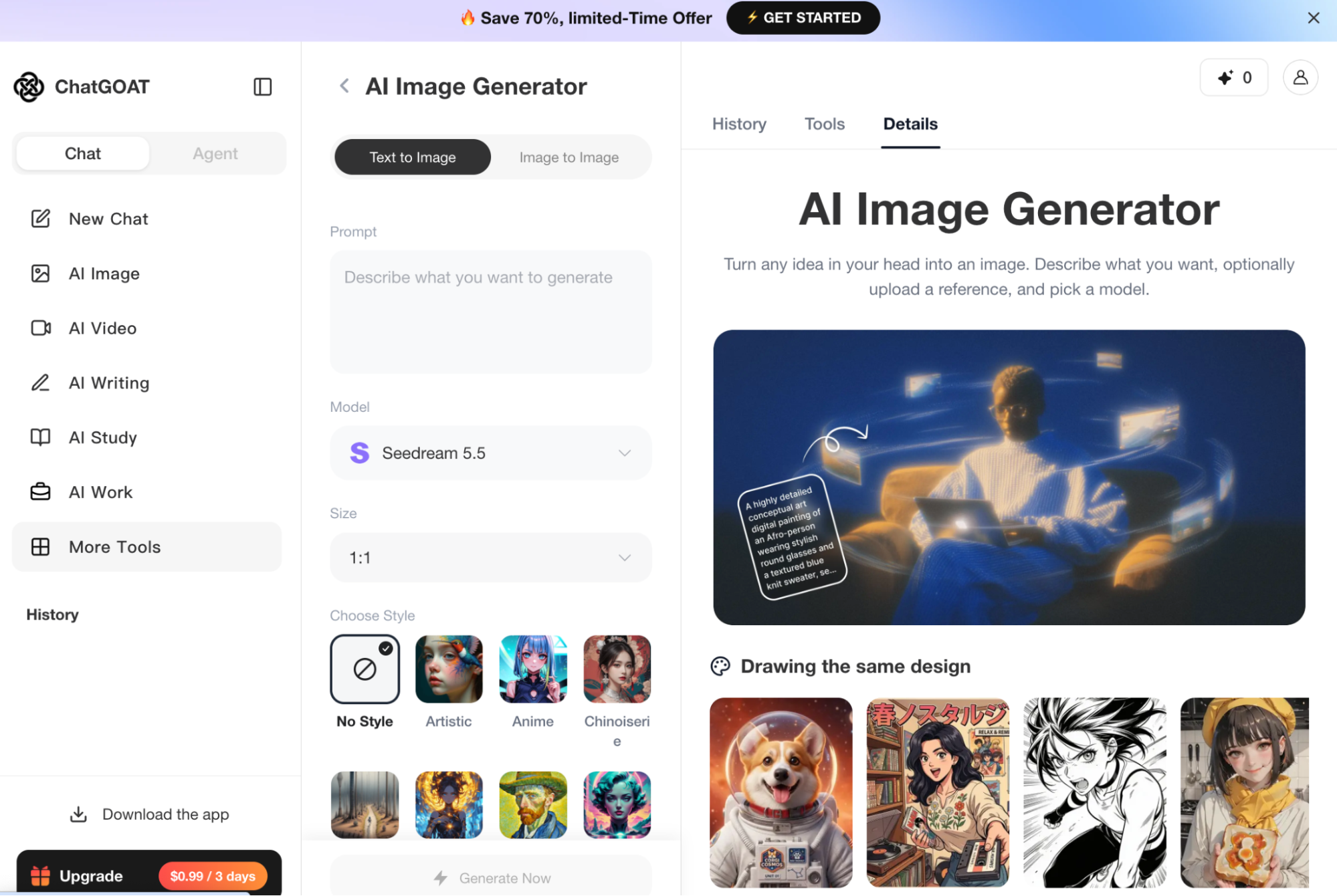
Open the image generation tool on ChatGOAT AI and choose Seedream 5.5 from the model list.
Step 2: Enter a Prompt or Upload a Reference Image
Enter a prompt to create a new image, or upload a reference image to edit. For edits, specify what you want to change and what should stay the same.
Step 3: Generate and Review Your Image
Generate the image and check the details, such as composition, lighting, and any text. If something needs adjustment, make your request more specific.
Step 4: Refine and Save the Result
If the image is close but not quite right, refine one or two details at a time. When you’re happy with the result, save the image.
Seedream 5.5 Tests: Real Results Across Different Use Cases
For each test, upload the corresponding reference image to Seedream 5.5 and use a focused prompt. This makes it easier to compare how the model handles product emphasis, image edits, transparent backgrounds, and poster text.
Test 1: Realistic Portrait and Product Images
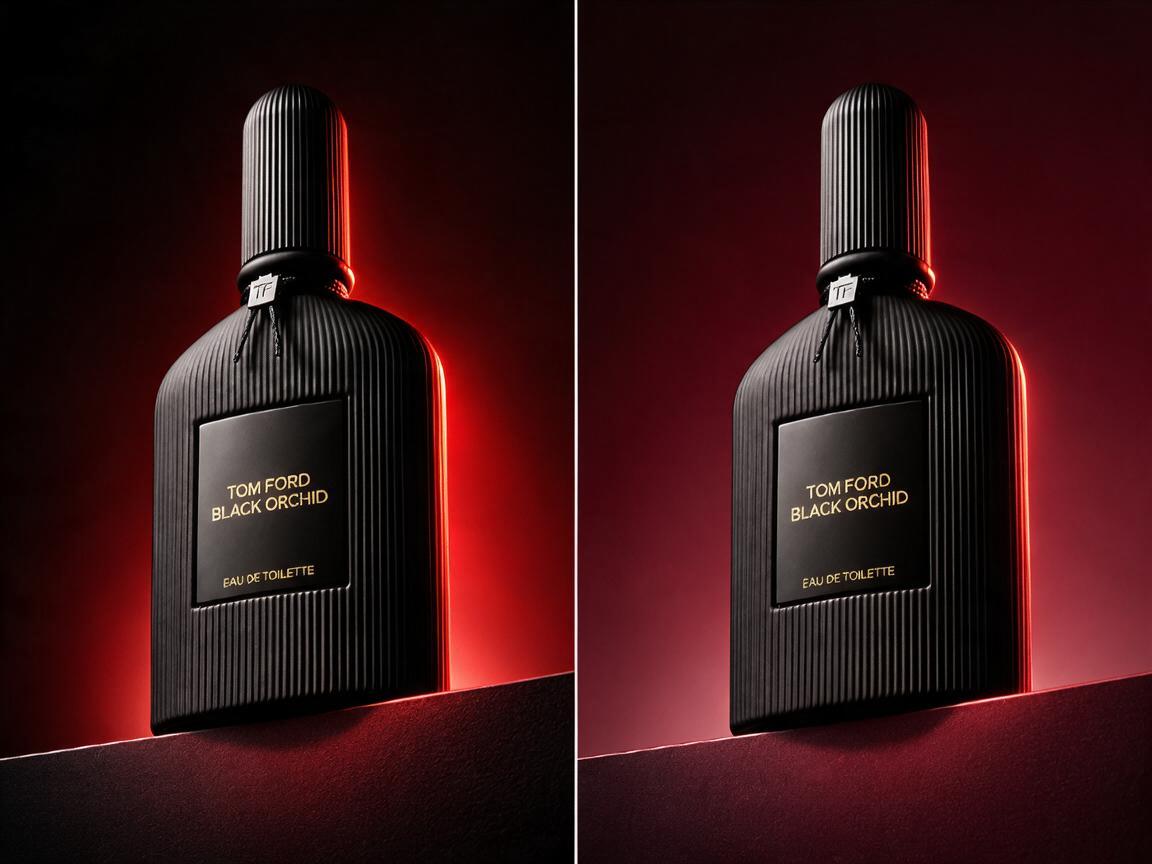
Use the perfume image to test product - focused editing. Ask Seedream 5.5 to adjust the background and lighting while keeping the bottle’s shape, ribbed texture, cap, and label unchanged.
Prompt: Keep the perfume bottle as the clear focal point. Preserve its shape, ribbed texture, cap, and label. Replace the background with a dark burgundy studio setting and add subtle red rim lighting. Create a polished luxury fragrance product photo.
Test 2: Edit a Portrait in Multiple Rounds
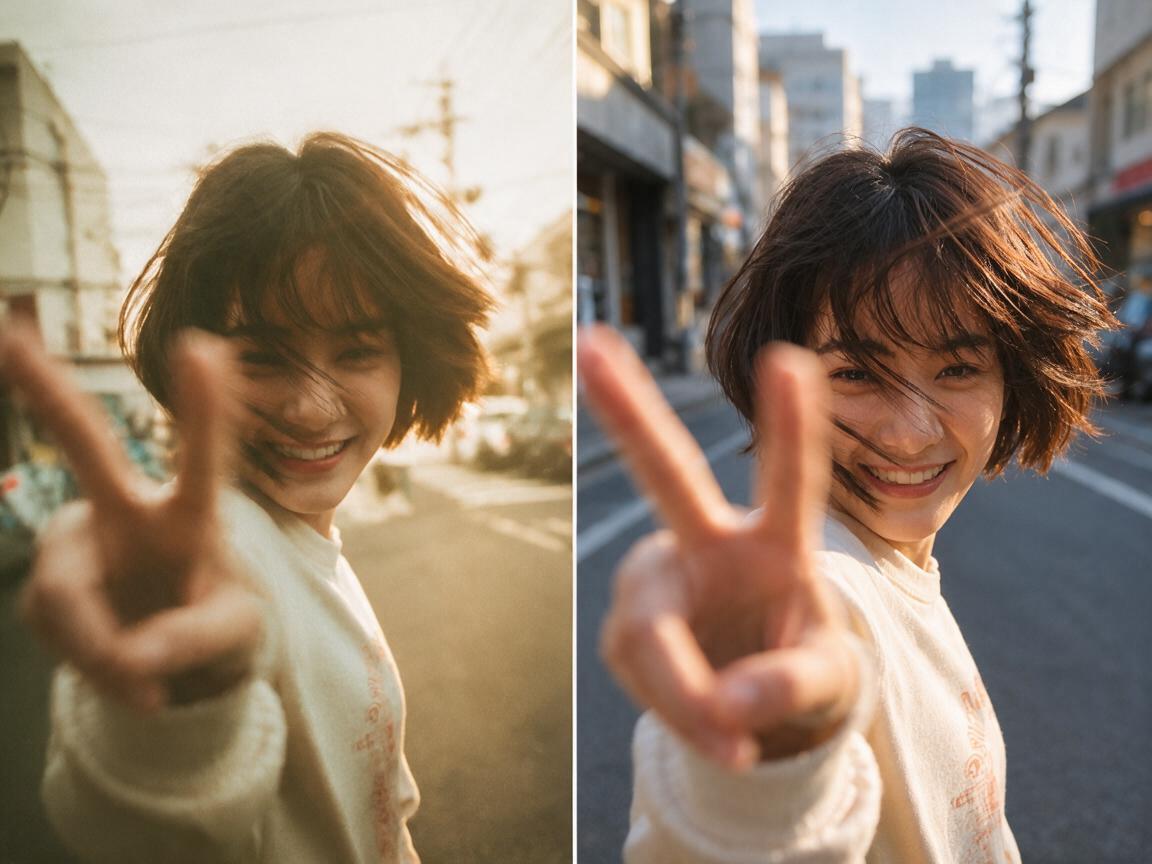
Use the portrait as a reference and make two edits in sequence to test whether Seedream 5.5 can maintain character consistency.
Round 1: Change the Background
Prompt: Replace the background with a modern city street. Keep the woman's appearance, pose, and clothing unchanged.
Round 2: Adjust the Lighting
Continue editing the result from Round 1.
Prompt: Change the lighting to warm late-afternoon light while keeping the woman and the background unchanged.
Compare both results to see how well Seedream 5.5 preserves details across multiple edits.
Test 3: Generating Images with Transparent Backgrounds
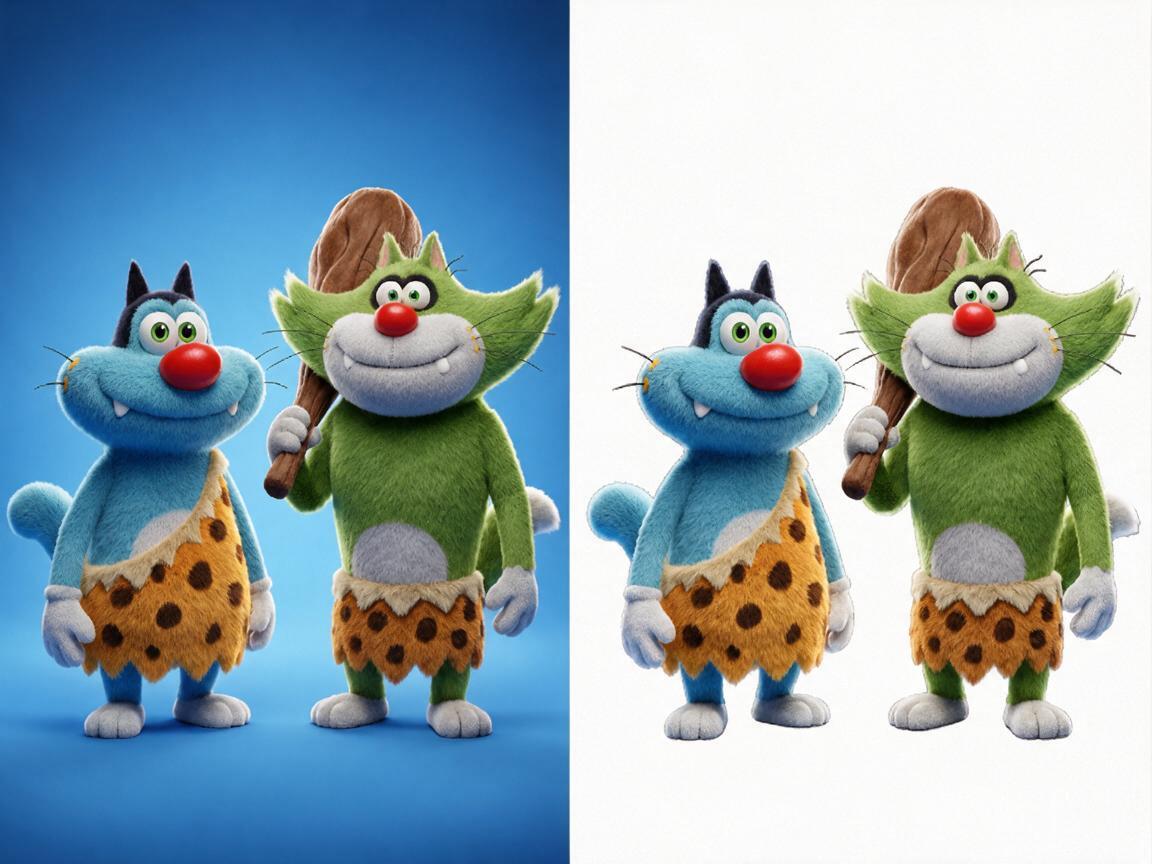
Use the image of the two cartoon characters to test isolated asset generation. Ask Seedream 5.5 to preserve their colors, outfits, and poses while removing the blue background.
Prompt: Keep both characters’ appearance, colors, outfits, and poses consistent with the reference. Remove the blue background and create a clean, transparent background with clear edges. Show both characters in full.
Check that the downloaded file actually has a transparent background, rather than a solid color or checkerboard pattern.
Test 4: Rendering Text in Posters
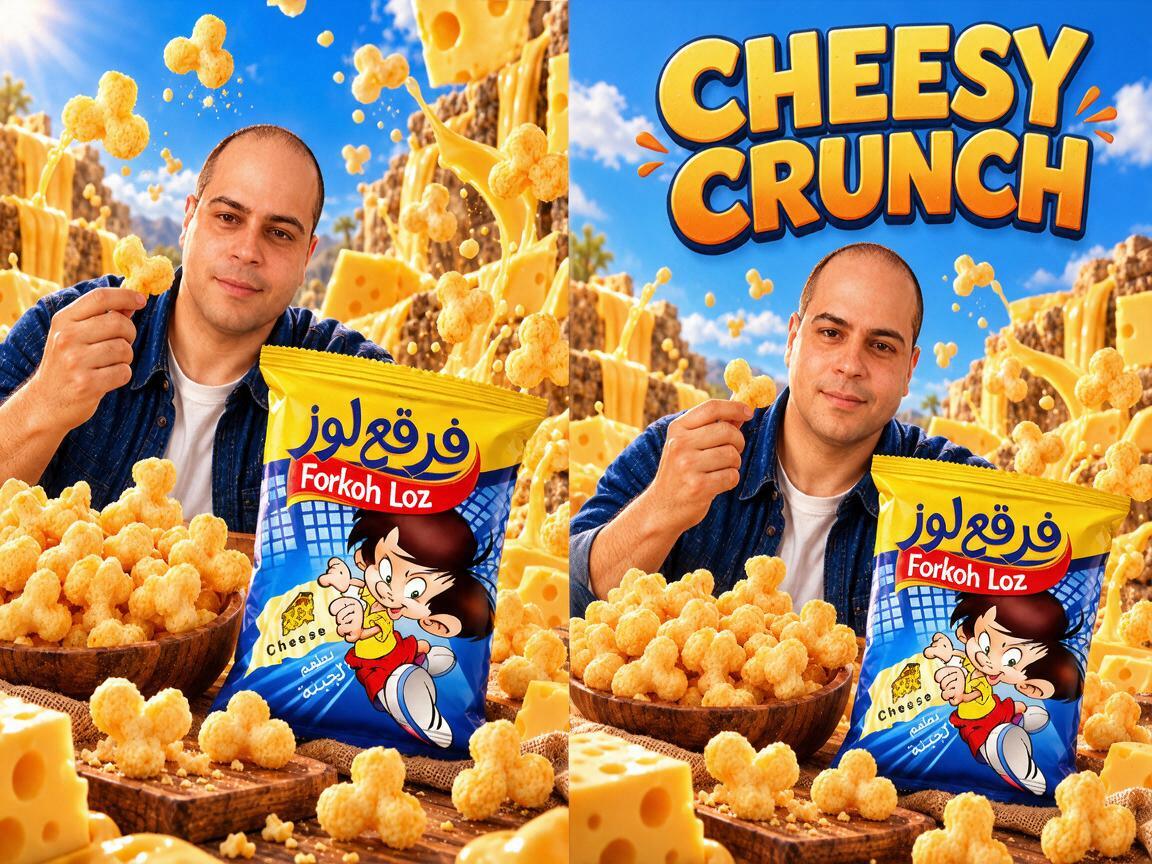
Use the snack advertisement as a reference to test text rendering in a busy poster. Keep the person and snack packaging prominent, and add a short headline in the open area near the top.
Prompt: Create a vibrant snack advertisement based on the reference image. Keep the person and snack package prominent, and preserve the package design. Add the exact headline “CHEESY CRUNCH” in large, bold lettering near the top. Keep the text clear and easy to read.
Once you’ve generated the images, you can add a brief result under each test describing what Seedream 5.5 preserved well and what needed refinement.
Best Seedream 5.5 Prompts for Different Use Cases
Try these prompts as a starting point and adjust the details to suit your project.
Prompts for E - Commerce Product Images
Keep the product prominent and the background clean.
1. A matte white skincare bottle on a soft beige studio background, subtle shadows, clean commercial lighting, realistic plastic texture, premium e-commerce photography.
2. A pair of white sneakers on a light gray background, soft studio lighting, realistic fabric and rubber details, clean product photography.
3. A glass perfume bottle on a marble surface, gentle reflections, elegant lighting, minimal luxury product photography.
4. A premium product photo of a skincare bottle on a warm beige surface. Use diffused studio lighting and subtle shadows. Keep the bottle centered, preserve its label and shape, and leave plenty of clean space around it.
5. Wireless earbuds and their charging case arranged on a pale gray surface. Show both clearly from a three-quarter angle, with realistic materials, balanced studio lighting, and no extra props.
6. A bag of specialty coffee beside a cup of freshly brewed coffee on a light stone counter. Use warm morning light, realistic packaging and coffee textures, and a clean composition with space around the products.
Prompts for Posters and Marketing Designs
Specify the headline, layout, and mood you want.
A fitness brand poster with a dark background, energetic lighting, and a bold layout. Add the headline “TRAIN HARD” in clear lettering. High contrast, polished advertising style.
Prompts for Social Media Content
Describe the objects and how they should be arranged.
A coffee cup, notebook, sunglasses, and phone arranged on a neutral desk, natural daylight, relaxed modern style, clean flat - lay composition.
Prompts for Portraits and Lifestyle Images
Include the setting, lighting, and overall feel of the portrait.
A candid portrait of a woman beside a city window at golden hour, soft natural light, realistic skin texture, relaxed expression, gently blurred background.
Prompts for Illustrations and Game Assets
Mention the asset’s style and whether it needs a transparent background.
A fantasy potion bottle filled with glowing blue liquid, isolated on a transparent background, detailed glass reflections, clean edges, polished game - asset style.
Prompts for Interior Design
Describe the room’s key furniture, colors, and lighting.
A bright Scandinavian living room with a beige sofa and oak coffee table, soft daylight, neutral colors, realistic materials, editorial interior photography.
How to Write Better Seedream 5.5 Prompts
A clear prompt gives Seedream 5.5 a better idea of what you want. Start with the main subject, then add only the details that matter for the image.
Describe the Subject, Setting, and Composition
Say what should appear, where it is, and how it should be framed. For example, “a ceramic mug on a wooden table” is a clearer starting point than “a beautiful mug photo.” You can then add details such as “near a rainy window, close - up, side angle.”
Specify Lighting, Materials, and Style
Add details that shape the look of the image, such as soft daylight, glossy packaging, or an editorial photography style. Choose details that suit the subject rather than adding too many unrelated descriptors.
Include Exact Text in Quotation Marks
If the image needs a specific headline or label, write the exact wording in quotation marks, such as “NEW ARRIVAL.” Keep the text brief, and check the generated image to make sure it appears correctly.
Give Clear Instructions When Editing Images
For image edits, state what to change and what to leave alone. For example: “Change only the product label to black and gold. Keep the bottle shape, background, shadows, and camera angle unchanged.” This helps make the requested edit more specific.
Is Seedream 5.5 Worth Trying?
Seedream 5.5 is worth trying if you create product images, marketing visuals, portraits, or design concepts. Its main strengths include:
- More realistic image details
- More consistent edits
- Improved text rendering
- Transparent background support
These features can make images easier to create and refine, though results still depend on the prompt. Try Seedream 5.5 on ChatGOAT AI to see how it works for your projects.
FAQ
How Much Does Seedream 5.5 Cost?
Seedream 5.5 plans start at 6.99 per month for 700 images,the Professional plan costs 24.99 per month for 1,800 images, while the Team plan costs $49.99 per month for 3,500 images. Image credits are valid for 30 days. You can also try Seedream 5.5 for free on ChatGOAT AI before choosing a plan.
Is Seedream 5.5 better than Seedream 5.0 Pro?
ByteDance reports that Seedream 5.5 delivers improvements in image quality and usability across its tested production scenarios, including more realistic images and fewer text errors. Which model works best may depend on your project and the platform you use.
Can Seedream 5.5 put text in images?
Yes. For better results, put the exact wording in quotation marks and specify where it should appear. Short phrases, such as poster headlines, are generally easier to render accurately.
What resolution does Seedream 5.5 support?
Seedream 5.5 supports 1K and 2K images in nine aspect ratios, from 21:9 to 9:21. For 4K output, use Seedream 4.5 or upscale the image with an Image Enhancer.
Can Seedream 5.5 Generate Transparent Images?
Seedream 5.5 supports transparent - background generation, which can be useful for product cutouts, stickers, and other isolated assets. The available export options may vary by platform, so check whether transparent PNG output is supported.

