


GPT 6 Luna is Ready





 AI Chat
 AI Image
 AI Video
 AI Writing
 AI Study
 AI Work
 AI Translate






One Platform. Multiple AI Models.
Meet, chat, and create with leading AI models like GPT 6 Luna, Claude Haiku 5.5, Grok-4.1 Fast and more — all in a single, simple platform.



Trusted by millions of users worldwide



Create and Refine Images with Seedream 5.5 for Free
Turn a written idea or reference image into a visual, then guide it through further edits. Seedream 5.5 is built to help you shape an image step by step, preserving important details as you adjust the parts you want to change. You can also create transparent assets and explore more natural-looking textures for designs, concepts, and creative projects.
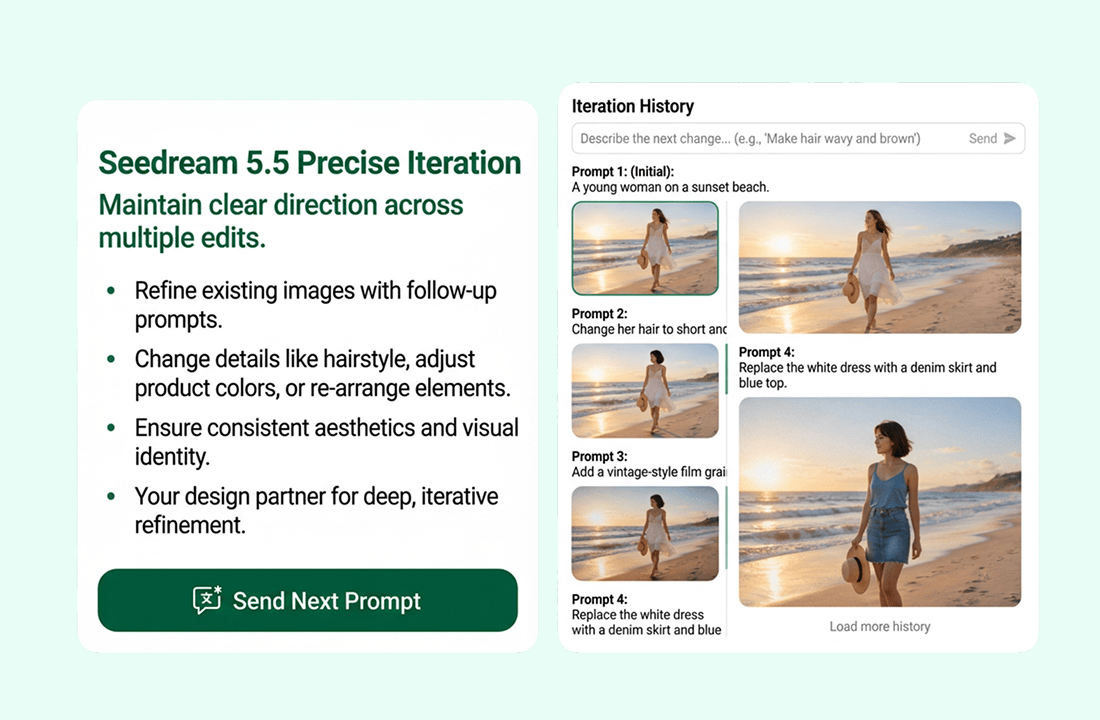
Keep a Clear Direction Through Multiple Edits
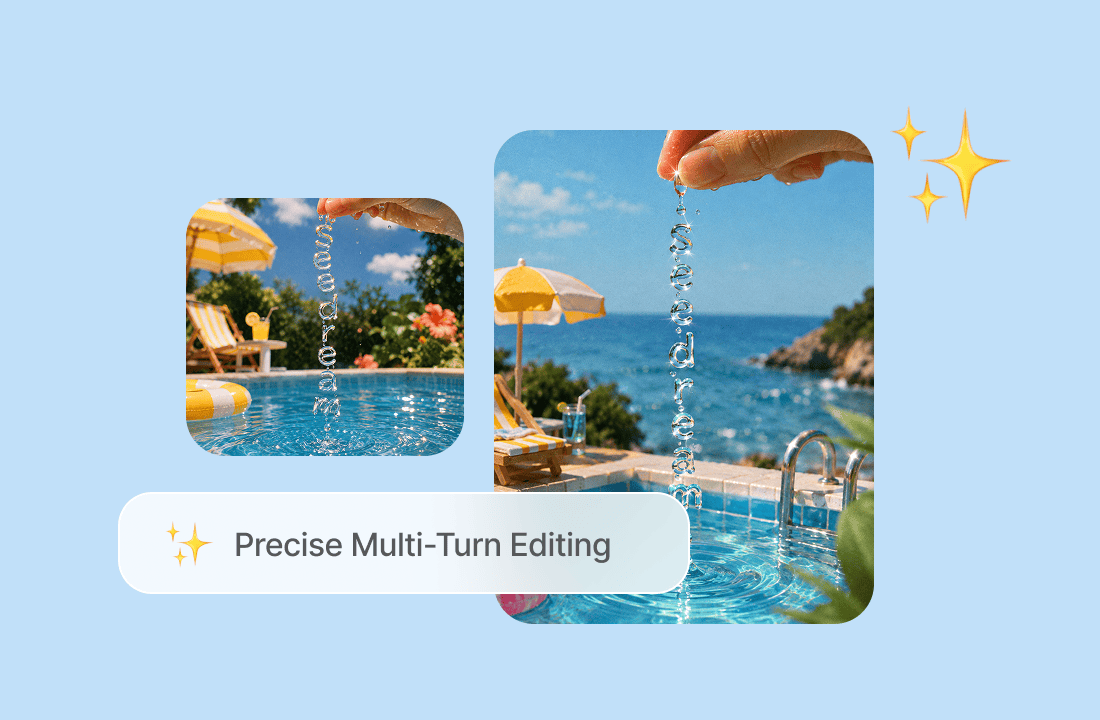
Build on an image with follow-up prompts. Change a hairstyle, update a product color, or rearrange parts of a scene while keeping the details you like. Seedream 5.5 is designed to maintain visual continuity as you refine an image over several rounds.
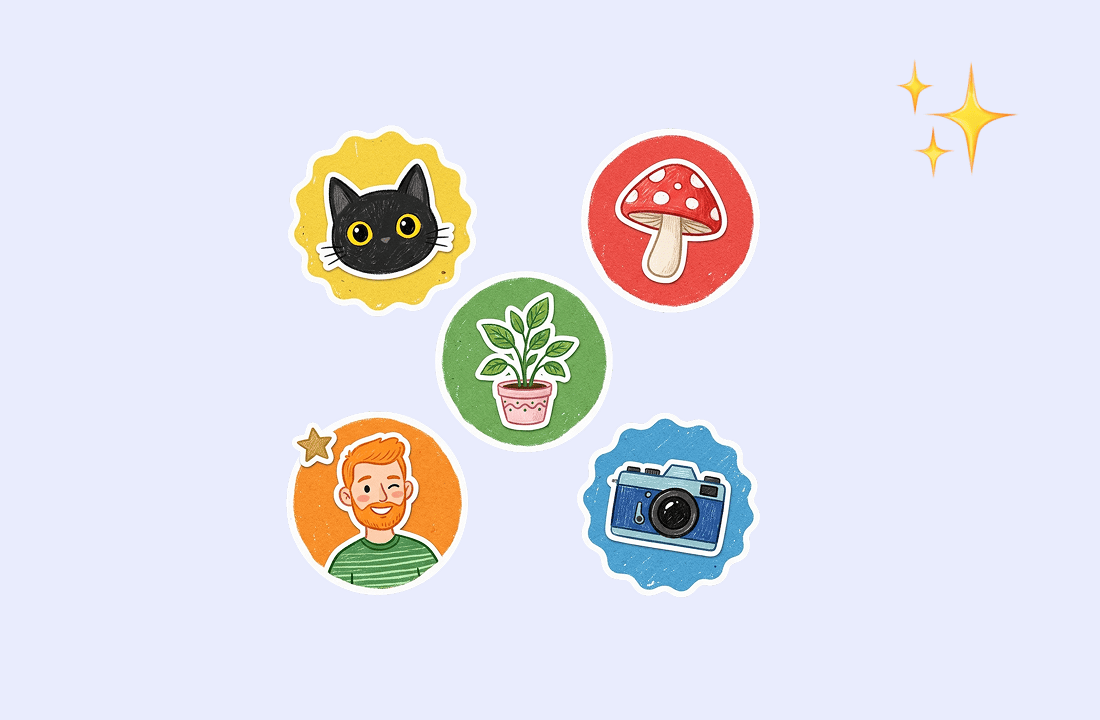
Make Transparent Assets as You Create
Create visual elements with transparent backgrounds for use in layouts, collages, and other designs. This can be useful for stickers, characters, lettering, or product elements that you want to place on a different background.
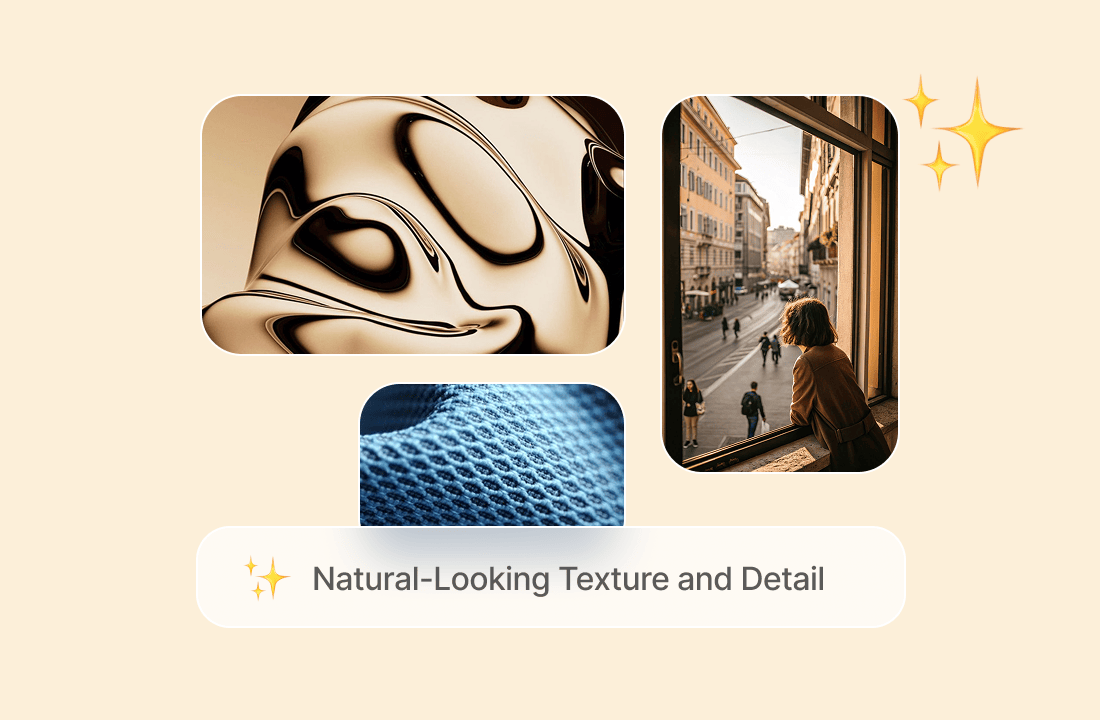
Add Natural-Looking Texture and Detail
Bring more depth to portraits, objects, and scenes with carefully rendered surfaces, lighting, and fine details. Describe the look you want - such as soft window light, brushed metal, or woven fabric - and use the result as a starting point for further creative work.
Separate Elements for Flexible Layouts
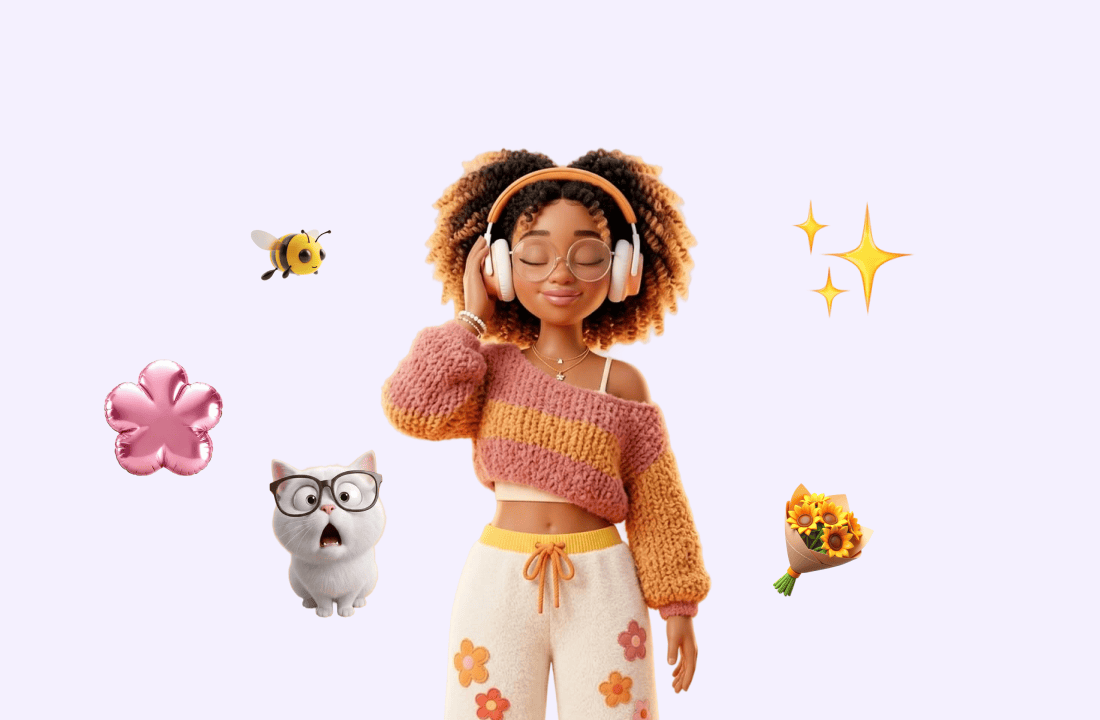
Create individual visual elements that are easier to arrange in a larger composition. For example, you could ask for separate characters or objects on transparent backgrounds, then place or reposition them to suit your design.
Create Images with Text and Visual Elements
Make graphics that combine lettering and imagery, such as posters, labels, or social media visuals. Give the model clear guidance about the words, style, and layout, then review the result and adjust it as needed.
Why Choose Seedream 5.5 on ChatGOAT AI?
Why Choose Seedream 5.5 on ChatGOAT AI?

Start with Text or a Reference Image
Describe a new idea or use an image as a base for your next edit.

Shape the Result through Follow-up Prompts
Keep refining details as your concept develops.

Explore Styles and Variations
Adjust the look, mood, colors, or composition to find a direction that fits your project.

Create in a Straightforward Workflow
Choose a model, enter a prompt, review the image, and continue editing or download your result.
How to Use Seedream 5.5 on ChatGOAT AI
How to Use Seedream 5.5 on ChatGOAT AI
Step 1: Select Seedream 5.5
Open the ChatGOAT AI image generator and choose Seedream 5.5 from the model list. Start with text-to-image for a new idea, or choose image-to-image when you want to work from an existing visual.
Step 2: Write Your Prompt
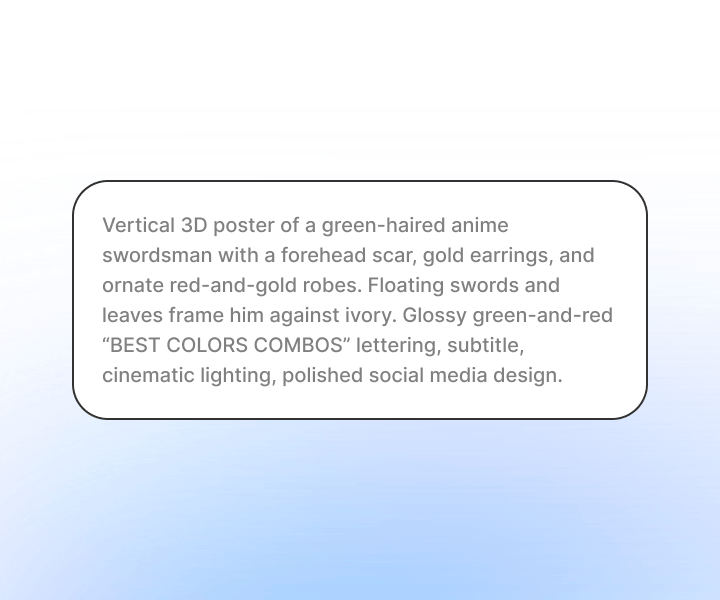
Explain what you want to create. Include the subject, setting, style, lighting, and composition. For an edit, say what should change and what should remain as it is.

Step 3: Refine or Download Your Image
Look over the result and decide whether you want to adjust anything. Add another instruction to refine a detail or try a different direction. When you’re satisfied, download the image.
Try Seedream 5.5 on ChatGOAT AI Today
Have an idea you want to see come to life? Choose Seedream 5.5 on ChatGOAT AI and start creating from a prompt or reference image. Keep shaping your result until it feels right for your project.
What Our Users Say About Seedream 5.5
What Our Users Say About Seedream 5.5
Seedream 5.5 makes it easy to keep refining an image. I can adjust small details through follow-up prompts while keeping the overall look consistent.

Seedream 5.5 makes it easy to keep refining an image. I can adjust small details through follow-up prompts while keeping the overall look consistent.
I like being able to create images with transparent backgrounds. It saves me a step when I’m putting together stickers and other design elements.

I like being able to create images with transparent backgrounds. It saves me a step when I’m putting together stickers and other design elements.
The textures and lighting give my images a more natural feel. I’ve been using it to explore different looks for product and lifestyle visuals.

The textures and lighting give my images a more natural feel. I’ve been using it to explore different looks for product and lifestyle visuals.
Being able to start with a reference image and then describe the changes I want makes the editing process feel straightforward.

Being able to start with a reference image and then describe the changes I want makes the editing process feel straightforward.
I use Seedream 5.5 to test different ideas for social posts. I can try new colors, compositions, and styles without rebuilding everything from the beginning.

I use Seedream 5.5 to test different ideas for social posts. I can try new colors, compositions, and styles without rebuilding everything from the beginning.
The follow-up editing is my favorite part. I can keep working from the same image and make changes as the concept develops.

The follow-up editing is my favorite part. I can keep working from the same image and make changes as the concept develops.
Seedream 5.5 FAQ
Everything you need to know about Seedream 5.5
What is Seedream 5.5?

Can I try Seedream 5.5 for free on ChatGOAT AI?
How do I create an image with Seedream 5.5?
Can Seedream 5.5 edit an existing image?
Can I make images with transparent backgrounds?
How can I get better results from my prompts?